3D Analysis Tools
A methodical, cross-functional approach to software development
Overview
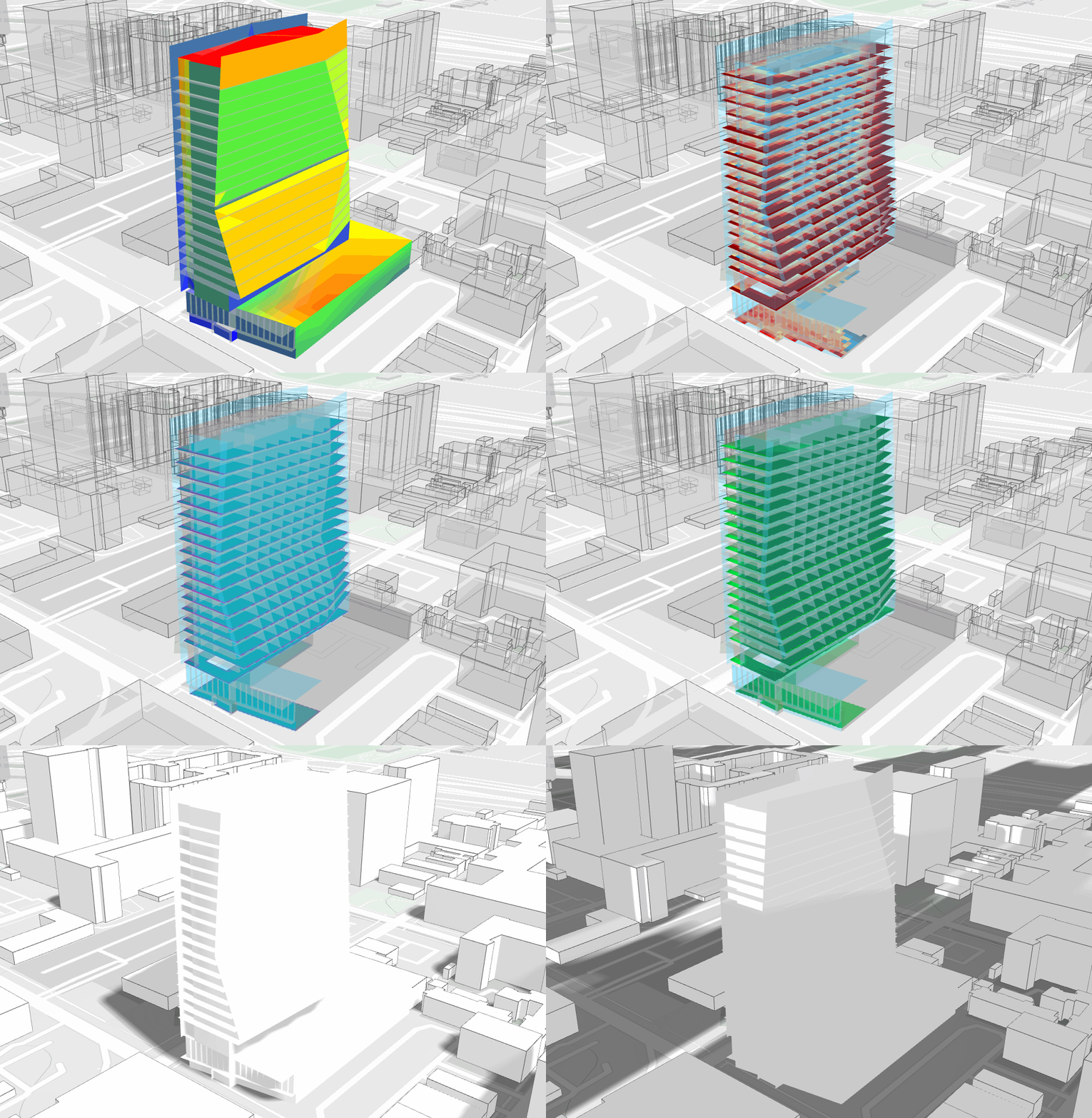
The drawing.tool is a web-based 3D modeling application that provides a user-friendly platform for architects and engineers to draw their early-stage models. As the tool is native to the platform, users can easily transition between features and product suites, knowing their model will always be compatible with every workflow. It also allows users to bring in their geometries directly from a suite of traditional 3D modeling platforms (BIM, CAD) and make changes to them inside the modeling interface. The intended workflow is based on rapid performance data and exports an optimized model.
Overview
The main drawing tool interface includes:
-
Application Menu - Change default settings and select, view, or edit default building elements.
-
Settings - edit Floors, Object Visibility, and Default Settings.
-
Building Elements - Drawing enclosed walls automatically creates individual rooms with default properties. These room properties can be edited and include room name, number, template, roof R-value, ground floor U-value, color, and texture.
-
Assembly Builder - Select, customize, design, and share building assemblies.
-
Catalog - select specific object types to use. The catalog contains all the 3D objects such as doors, windows, furniture, etc. that users can use to model.
-
Save Project button
-
Design Toolbar - Edit Floors, Object Visibility, and Default Settings.
-
Curves: This command allows users to draw lines and polylines.
-
Extrusion: Push and pull planes created by curves to model primitive masses. To convert these masses, select "make building" button under transform tools.
-
Building Elements: Drawing building elements such as walls and air walls, doors, openings, windows, roofs, spandrels and skylights by selecting the respective icon.
-
Transform Tools Select a room, existing roof, or plane and convert into a roof or outdoor floor element. Select "make building" to convert a mass to a building.
-
Camera: Saves a PNG file of the scene
-
Saving Views: By clicking on the camera icon, you can save your preferred 3D views and select it from the camera list when you want to open it. Select the icon to the right to export that view as an image.
-
Navigation bar - Zoom in, zoom out, and orient view using navigation icons.When a building element is selected, users can move, rotate, and scale the object.
-
2D/3D viewpoint - Switch back and forth between 2D and 3D mode for best drawing or modeling view.
-
Snap Controls - When drawing a line, users can activate drawing modes that allow you to snap onto endpoints, lines, grid points, projection snapping (ortho) objects (Osnaps), and along a constrained axis (angles).
-
Import, Upload, and Export Buttons
-
Export: Export the model to the 3D Analysis or load.modeling.
-
Download a 3D model: To download an "OBJ" file format of your model. OBJ is a common 3D format and can be opened in most of 3D modeling platforms such as Rhino, Revit, etc.
-
Upload: Import an image to trace over or import a dxf file
Project Stats
Role:
UI Designer,
Tools:
Type:
New Feature
Timeline:
4 months
Success Metrics
Launch Date:
January 2023


